



Introduction
WhatsApp is an essential app for both daily and business communication. If you’ve lost your WhatsApp messages — including chats, photos, videos, or voice notes — don’t panic.
Whether it happened after uninstalling the app, resetting your phone, or accidental deletion, there are reliable ways to restore WhatsApp messages on Android.
In this guide, you’ll learn how to recover deleted WhatsApp messages with or without backup, why message restoration sometimes fails, and how tools like FonePaw Android Data Recovery can help you retrieve your valuable data safely.
Understanding WhatsApp Message Storage and Backup
Before starting WhatsApp message recovery, it’s important to understand how the app stores your data, in order to find the better way to retrieve deleted messages back.
WhatsApp’s Backup System
WhatsApp automatically backs up your chat history, photos, and videos in two ways:
- Local backup — Saved daily at 2:00 a.m. in your phone’s internal storage.
- Google Drive backup — Uploaded daily, weekly, or monthly to your Google account (if enabled).
Each backup includes:
- Message database file (msgstore.db.crypt14)
- Media folders (photos, videos, documents, voice messages)
- WhatsApp keeps up to seven local backups and overwrites older ones automatically.
- Google Drive backups are linked to both your phone number and Google account.
- If your files were deleted after the last backup, they might not appear in restoration.
How to Restore WhatsApp Messages With Backup
Summary:
As WhatsApp's backup system will automatically save data to your phone's internal storage or Google Drive (if enabled), you can restore deleted WhatsApp messages from these 2 places conveniently.
Restore from Local Backup
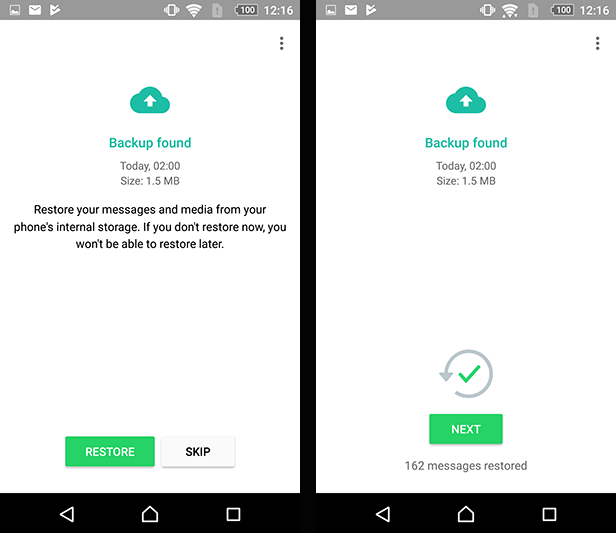
First, as WhatsApp automatically backs up data on a daily basis, let's see how to restore WhatsApp messages from local storage on your phone within several easy steps:
1. Open the File Manager app on your phone.
2. Navigate to: Internal Storage / WhatsApp / Databases
or, on newer Android versions: Android / media / com.whatsapp / WhatsApp / Databases
3. Locate a file named msgstore-YYYY-MM-DD.1.db.crypt14.
4. Rename it to msgstore.db.crypt14.
5. Uninstall and reinstall WhatsApp.
6. When prompted, choose “Restore” to import the local backup and the deleted messages will be retrieved.
- Samsung and Xiaomi phones often store WhatsApp data in slightly different folders.
- If you used an SD card, check SDCard/WhatsApp/Databases.
- Avoid using cleaner apps — they sometimes delete your local backup folder.
Restore from Google Drive Backup
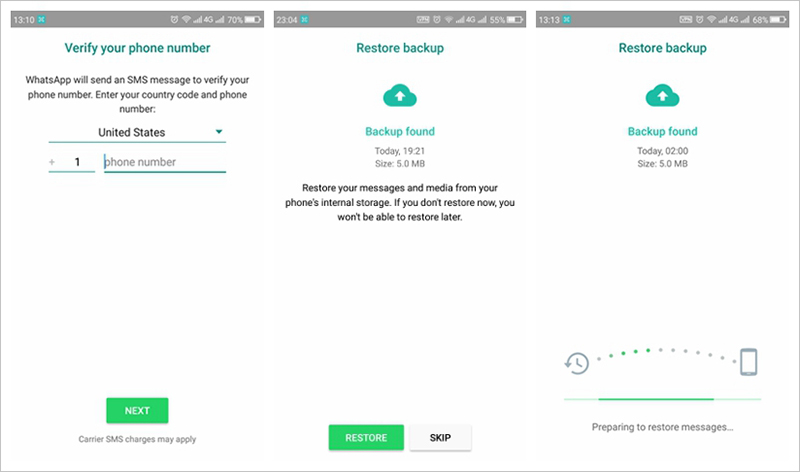
If you previously synced WhatsApp with Google Drive, the data will be backed up to the app regularly, making the data restore to be even simpler. The guide is as follows:
1. Uninstall WhatsApp from your device.
2. Reinstall it from Google Play.
3. Open the app and verify your phone number.
4. When asked, tap “Restore from Google Drive”.
5. Wait for chats and media to finish downloading.
After the process, your chats and attachments (photos, videos, documents) will reappear automatically.
- You’re using a different Google account or phone number.
- Google Drive permissions were disabled.
- Backup didn’t include videos (option not selected).
- Network connection is weak or unstable.
- The backup file is encrypted or incomplete.
If restoration fails, try deleting the app, reconnecting to a stronger Wi-Fi, and signing in again with the correct Google account.
How to Restore WhatsApp Messages Without Backup
Summary:
If you never created a backup or your Google Drive backup is outdated (without getting the latest WhatsApp messages backed up in time), you can still recover your deleted messages using a professional data recovery tool.
Use FonePaw Android Data Recovery (Recommended)
FonePaw Android Data Recovery can deeply scan your Android phone to restore deleted WhatsApp messages, photos, and videos — even without backup. Better yet, the older WhatsApp chats can also be found back without losing the current messages. To help you better understand this software, we list its key features here for you.
Free Download Buy with 20% off Free Download Buy with 20% off
How it works:
Step 1. Download and install FonePaw Android Data Recovery on your PC or Mac.
Step 2. Connect your Android device via USB and enable USB debugging .
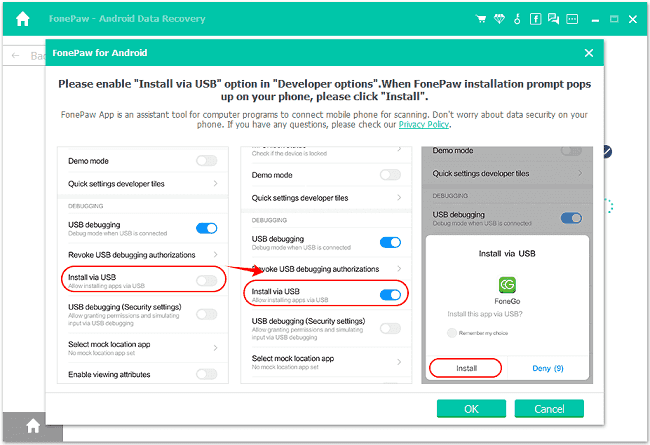
Step 3. Choose WhatsApp and WhatsApp Attachments for scanning. You will need to enable Install via USB on your Android phone and install the FonePaw app. So hit the "Allow" button to each request sent by the FonePaw app when the notification window pops up.
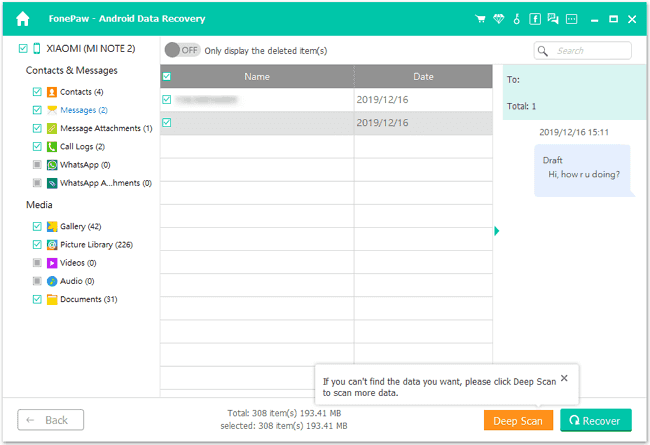
Step 4. Preview recoverable messages and media after the scanning is over.
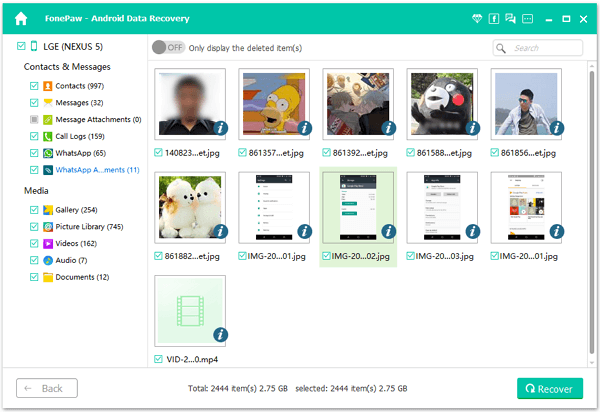
Step 5. Select the files you need and click Recover.
 Why FonePaw?
- ● Recovers WhatsApp messages without backup.
- ● Supports over 6,000 Android models.
- ● Allows preview before recovery.
- ● Works on chats, contacts, call logs, photos, and videos.
- ● Secure and read-only — no existing data will be overwritten.
💡Tips:
When you delete a WhatsApp message, it’s not instantly erased — the data remains in your phone’s internal memory until it’s overwritten. To improve recovery success:
- Stop using WhatsApp immediately after deletion.
- Avoid installing new apps or large updates.
- Use FonePaw Android Data Recovery to scan your device as soon as possible.
Repair Corrupted or Incomplete WhatsApp Files
Sometimes recovered media files (like videos) may appear damaged or won’t open properly.
This can happen if they were partially written when deletion occurred. The following offers some methods to help you fix this issue.
Fix methods:
- Use video repair tools or programs to restore damaged MP4 or 3GP files.
- Re-encode videos using VLC or HandBrake.
- Rename files manually if extensions are missing or mismatched.
WhatsApp media corruption often happens during interrupted transfers (low storage, unstable network). Repair tools rebuild missing headers and make the file playable again.
How to Prevent Future WhatsApp Message Loss
Once you’ve restored your WhatsApp messages, take steps to avoid future data loss.
- Enable automatic Google Drive backup: Go to Settings → Chats → Chat Backup, and select Daily.
- Include videos in the backup if needed.
- Check storage space: Ensure your Google Drive has enough free space — the free 15 GB limit can fill quickly.
- Avoid cleaning apps that delete your WhatsApp folders.
- Manually export important chats as .txt files or copy your WhatsApp Media folder to your computer.
Combine local and cloud backups for double protection.
Local backups restore faster, while Google Drive keeps data safe if your phone is lost or reset.
FAQs
1. Can I restore deleted WhatsApp messages without backup?
Yes. Tools like FonePaw Android Data Recovery can recover deleted WhatsApp messages and attachments directly from your phone’s internal storage.
2. How far back can WhatsApp restore old messages?
WhatsApp can restore messages as far back as your latest backup — up to seven days for local backups or longer if you use Google Drive. So for older messages stored 7 days ago, you will need help from third-party recovery programs (if the data has not been overwritten yet).
3. Why can’t I restore WhatsApp messages from Google Drive?
The recovery failures may be resulted from several reasons, for instance, you may be using a different Google account, have no recent backup, or your Drive backup didn’t include videos or media.
4. Does restoring messages delete my current chats?
When restoring from backup, WhatsApp replaces your current database with the selected backup file. To prevent data loss and save more data, you can always export recent chats before restoration.
5. Is FonePaw Android Data Recovery safe?
Yes. It’s 100% safe and read-only. The tool doesn’t modify, upload, or overwrite your existing data.
Conclusion
Whether you accidentally deleted your chats or lost your phone data, there’s always a way to restore WhatsApp messages on Android.
If you already have a backup, try getting back deleted WhatsApp messages from Google Drive or local files.
If not, FonePaw Android Data Recovery gives you a reliable way to recover deleted WhatsApp messages, photos, and videos — even without backup.
✅ Try FonePaw Android Data Recovery today to bring back your deleted WhatsApp messages safely and easily.