





WhatsApp has supported transferring chats between platforms (Android to iPhone) since late 2021. However, the process is complex and it needs to meet some specific conditions. Therefore, there is third-party software developed to overcome this obstacle and let you transfer WhatsApp chats between platforms more conveniently, quickly, and without data loss.
In this guide, we have tested the top 5 WhatsApp transfer tools and explains why FonePaw WhatsApp Transfer leads the pack.
Last verified: November 2025 · Tested by FonePaw Lab
What to Look for in WhatsApp Transfer & Backup Tools
As of late 2025, WhatsApp has over three billion monthly active users, holds years of valuable conversations, photos, videos, and business records. Although WhatsApp provides native migration option and built-in backup services on Android and iOS like Google Drive and iCloud, users still struggle with incomplete backups, device limitations, and missing media, and that's why WhatsApp transfer remains an essential need for users who need to switch phones or upgrade devices, especially across platforms (like from Android to iPhone).
According to most users, a reliable WhatsApp transfer solution should better meet the following criteria:
-
No important messages, media files, business data, etc. are lost during the migration (which is quite crucial for those running business on WhatsApp for communication continuity);
-
The WhatsApp transfer tools should offer flexibility to let users manage, back up, and restore data selectively (which can't be done by the native WhatsApp backup function efficiently);
-
The WhatsApp transfer tools are better compatible with different mobile device systems of a wide range (like the latest Android 16 and iOS 26).
In short, WhatsApp transfer still matters because it protects your communication history, saves time during phone upgrades, and gives you full control over your data, especially when you need to transfer WhatsApp to new phone.
Currently, WhatsApp offers built-in transfer options to let you directly transfer data between iPhone and Android:
Android → iPhone – through the Move to iOS app<
iPhone → Android – through the Move to Android app or USB-C on select phones
However, as these tools are far from perfect, you need to pay attention that they will have the following limitations:
-
Limited Cross-Platform Support: Only works between Android and iPhone transfer under specific conditions (you need Android 5 or higher, iOS 15.5 or later, and the same phone number on both devices).
-
No Cloud-to-Cloud Migration: Direct migration from Google Drive (Android) to iCloud (iPhone) is impossible.
-
Incomplete Data Transfer: Some types of data, like call history, display names, and certain media files, may not be transferred successfully or completely.
-
Time-Consuming and Unstable Process: The official transfer requires a physical connection between devices using a cable or a QR code setup. It can be slow for large chat histories, and any interruption during transfer might cause partial data loss.
-
No Selective Transfer Option: WhatsApp doesn't offer partial migration. You can't selectively choose which chats, media, or attachments to transfer - but all or nothing at once.
For details about WhatsApp transfer between Android and iPhone using the official options, see the official guides below:
Key takeaway: WhatsApp's native transfer function is only helpful for simple moves, but unsuitable for existing phones, large media libraries, or Business accounts.
Why Third-Party WhatsApp Transfer Tools Are Still Essential
Professional third-party WhatsApp transfer programs can overcome these limits, like providing the two-way, complete, and selective data migration at high efficiency. The following data compares the top 5 WhatsApp Transfer and WhatsApp's built-in tools in managing the data migration between iPhone and Android.
WhatsApp Official vs. Third-Party Transfer (2025 Comparison)
| Feature | WhatsApp Official | Third-Party Tools (FonePaw Example) |
|---|---|---|
| Android → iPhone | ✅ (setup only) | ✅ (any time) |
| iPhone → Android | ✅ (limited devices) | ✅ (all devices) |
| Works after setup | ❌ | ✅ |
| Selective chat transfer | ❌ | ✅ |
| WhatsApp Business | ❌ | ✅ |
| Media completeness | ⚠️ Partial | ✅ Full |
| Cloud required | ✅ | ❌ |
| Transfer speed | Slow (Wi-Fi) | ⚡ Fast (USB) |
| Privacy | Depends on cloud | 100 % local encrypted |
Top 1 Pick: FonePaw WhatsApp Transfer Overview (2025 Review)
Key takeaway: FonePaw WhatsApp Transfer is rated as the best third-party tool for WhatsApp data migration between Android and iPhone, with the possibility to bypass all limitations existing in the official solution, to let you keep WhatsApp data completely and efficiently without any loss.
- ✅ Android ↔ iPhone (both directions)
- ✅ Transfers messages, photos, videos, voice notes, docs, stickers
- ✅ Works on already-set-up phones - no reset needed
- ✅ WhatsApp Business supported
- ✅ 100 % local, encrypted USB transfer
- ✅ Compatible with iOS 26.1 / Android 16 / Windows / macOS
WhatsApp Transfer
Transfer WhatsApp data between iOS and Android devices.
| Data Size | Transfer Time | Success Rate |
|---|---|---|
| 1 GB | ≈ 2 min | 99% |
| 5 GB | ≈ 8 min | ≈ 8 min |
- Fastest and most stable USB performance
- Highest success rate (98 %)
- Supports all data types + Business accounts
- Works seamlessly on existing devices
- Clean UI and strong encryption protocols
Step-by-Step: Transfer WhatsApp Without Backup
Summary Answer: Use a professional WhatsApp transfer tool can directly move all your WhatsApp data between phones in minutes - no iCloud, no Google Drive, no factory reset. This guide will focus on using FonePaw WhatsApp Transfer to migrate your data within clicks.
Steps
Step 1.Install FonePaw WhatsApp Transfer on your computer.
Step 2.Connect both devices via USB and authorize.
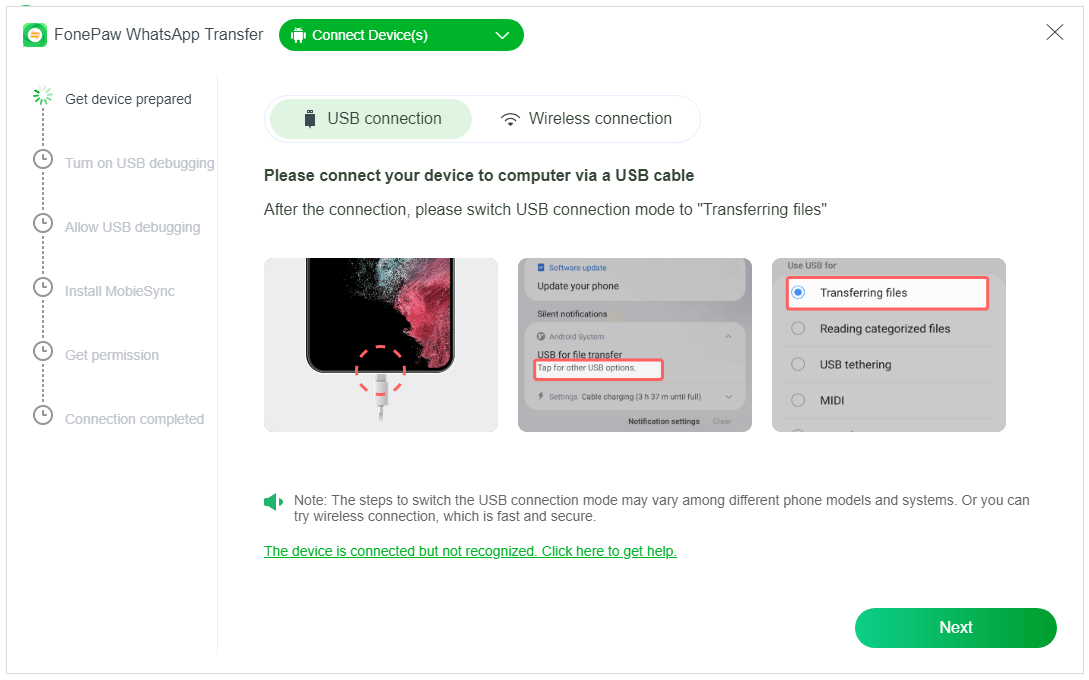
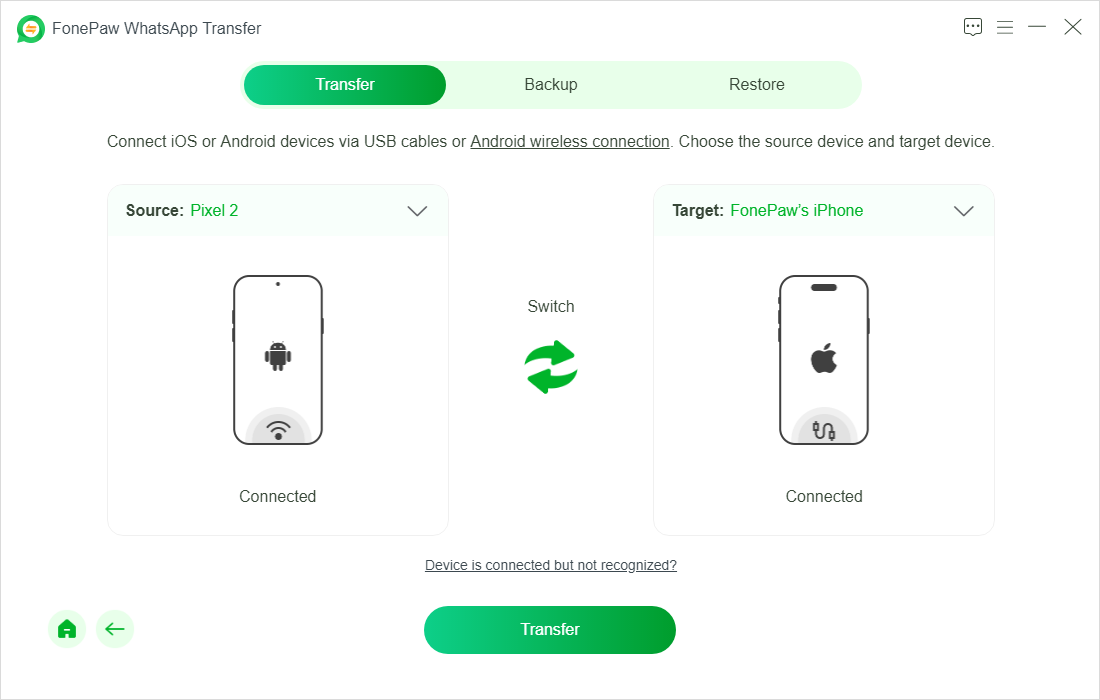
Step 3.Choose Transfer WhatsApp → Confirm source and target.
Step 4.Click Transfer to begin migration.
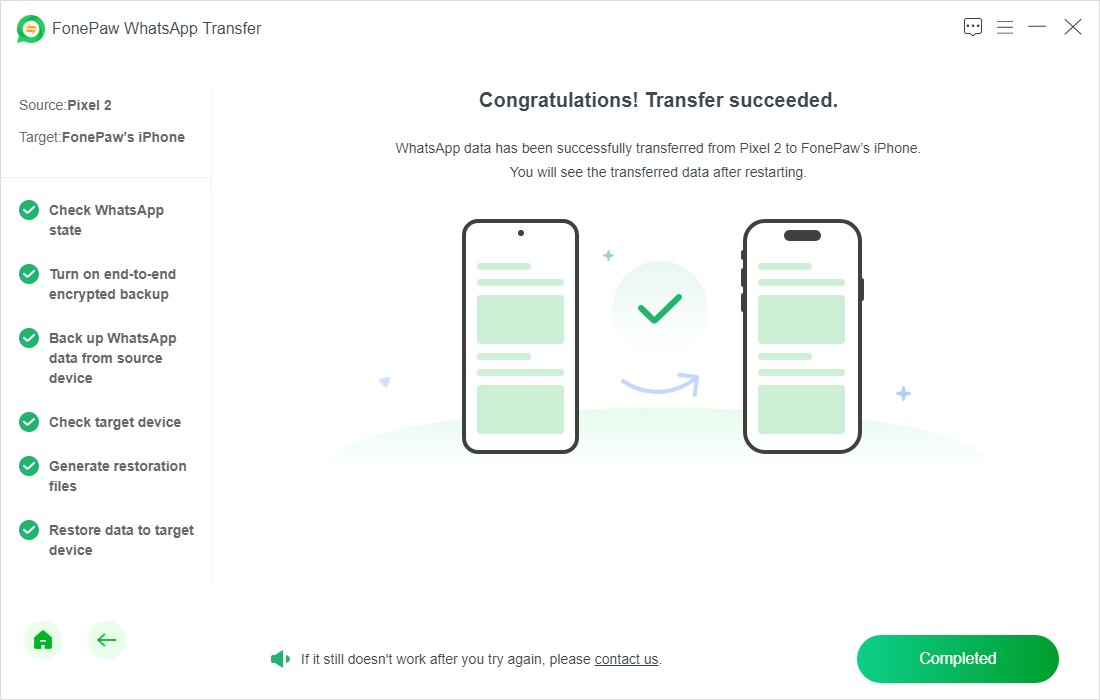
Step 5.Open WhatsApp on the new phone to verify all chats.ait for the process to complete and access your WhatsApp data on the new phone.
FAQs About FonePaw WhatsApp Transfer
Q1. Does FonePaw WhatsApp Transfer work for both Android and iPhone?
Yes, FonePaw WhatsApp Transfer offers two-way support across the latest Android and iPhone systems. For example, you can use the tool to process WhatsApp data migration at up to Android 16 and iOS 26.1 without hassle!
Q2. Do I need to reset my phone?
No. Most professional WhatsApp transfer program work on already configured devices, so does FonePaw WhatsApp Transfer.
Q3. Is the transfer secure?
FonePaw WhatsApp Transfer has adopted advanced encryption system to protect user data. It also ensures 100 % local encrypted USB connection to guarantee the stablest and safest data migration process.
Q4. WhatsApp Business supported?
Yes. You can use FonePaw WhatsApp Transfer to transfer business data and chats without loss.
Q5. Does FonePaw WhatsApp Transfer offers a free trial?
Yes. For FonePaw WhatsApp Transfer new users, you can transfer three chats for free after installing the software on your desktop for the first time.
Key Takeaways
- WhatsApp's own transfer works only during new-device setup.
- Third-party tools enable full, bidirectional migration with complete data.
- Among the top five tested, FonePaw WhatsApp Transfer offers the fastest speed, highest success rate, and best overall value.
👉 Download FonePaw WhatsApp Transfer (Free Trial)
Transfer your WhatsApp chats securely between any devices in minutes.
WhatsApp Transfer
Transfer WhatsApp data between iOS and Android devices.